

Backup & Restore
Detailed instructions on JSON database and local snapshot recovery
Grid Diary provides powerful, flexible backup options to ensure your memories are safe under any circumstances. While cloud sync is automatic, understanding local backup and restore mechanisms gives you complete control over your data.
Backup & Restore Methods
1. JSON (Universal Format)
JSON is a universal, open data-interchange format supported by Grid Diary.
- Security Note: The exported JSON file (
.gdjson) is not encrypted, so you should manually save it to a safe and secure location. - Import Behavior: Importing a JSON file will not overwrite the previous data on your current device. Instead, it merges the imported entries with your current local database.
2. Data Snapshot
A data snapshot is a backup of the local database combined with an index of your attachments.
- When to Use: Data snapshots are useful when you need to restore historical data, or if you cannot use the cloud sync feature. If you simply want to back up or migrate your data, we recommend using the JSON import/export features instead.
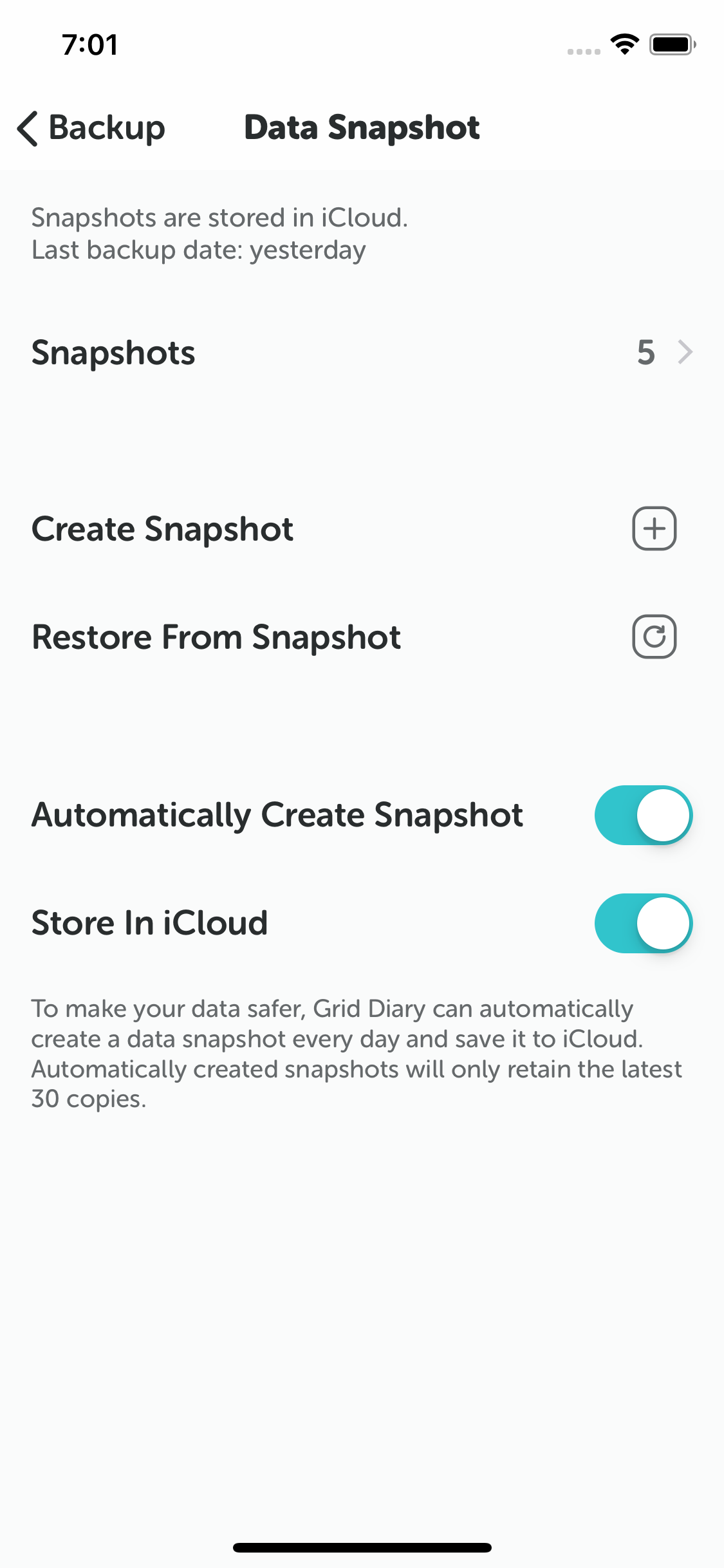
- Automatically Created Snapshots: To keep your data secure, Grid Diary automatically creates a database snapshot every day and saves it to iCloud. Automatically created snapshots will retain the latest 30 copies.
- Restoring From a Snapshot: Restoring from a snapshot will overwrite all local data on your current device.
- Snapshots and Cloud Sync: Restoring a snapshot only affects the local device. To prevent local restored data from being overwritten by newer data on our sync server, Grid Diary will automatically turn off cloud sync when you restore from a snapshot.
- Exporting Snapshots: The snapshot file itself does not include attachments, keeping it extremely lightweight. However, you can choose to export it as a complete backup file (
.gdsnapshot) that includes all attachments.
FAQs & Best Practices
Should I use cloud sync or local backup?
In most cases, Grid Diary's automatic sync service can completely replace the backup feature. However, JSON exports and data snapshots provide an extra layer of security.
We recommend that you turn on Sync, keep the default Auto-Create Snapshot option enabled, and periodically export a JSON backup to a secure secondary location (such as Dropbox, Google Drive, or local storage) for archiving.
How do I migrate my data to a new device?
- Membership Users: Simply log in to your account on the new device and wait patiently for the automatic sync to complete.
- Free Users: You can manually export the JSON file from the old device and then import it onto the new device to complete the data migration.
Can I transfer data without an account?
Yes. If you prefer to keep your diary completely offline and do not wish to create a Grid Diary account, you can manually transfer your data. Simply export your diary as a JSON file from your old device and import it on the new device to complete the manual transfer.