

Export & Import
Move your data in and out of Grid Diary
Bulk Export
You can export multiple entries at once for archiving, printing, or migrating.
Go to the Timeline page.
Tap the "..." (More) button in the top-right corner.
Select "Select" from the menu.
Choose your export scope:
- Export All: Tap the Export button on the bottom editing toolbar directly, then select "Export All".
- Export Selected: Tap to select specific entries on the page, tap the Export button on the bottom editing toolbar, and select "Export Selected".
Choose your preferred export format:
- Markdown: Great for importing your entries into other writing or personal knowledge management apps.
- Text: A simple, plain text backup of your reflections.
- PDF: Perfect for printing or clean archiving, with options for A4/Letter page sizes.
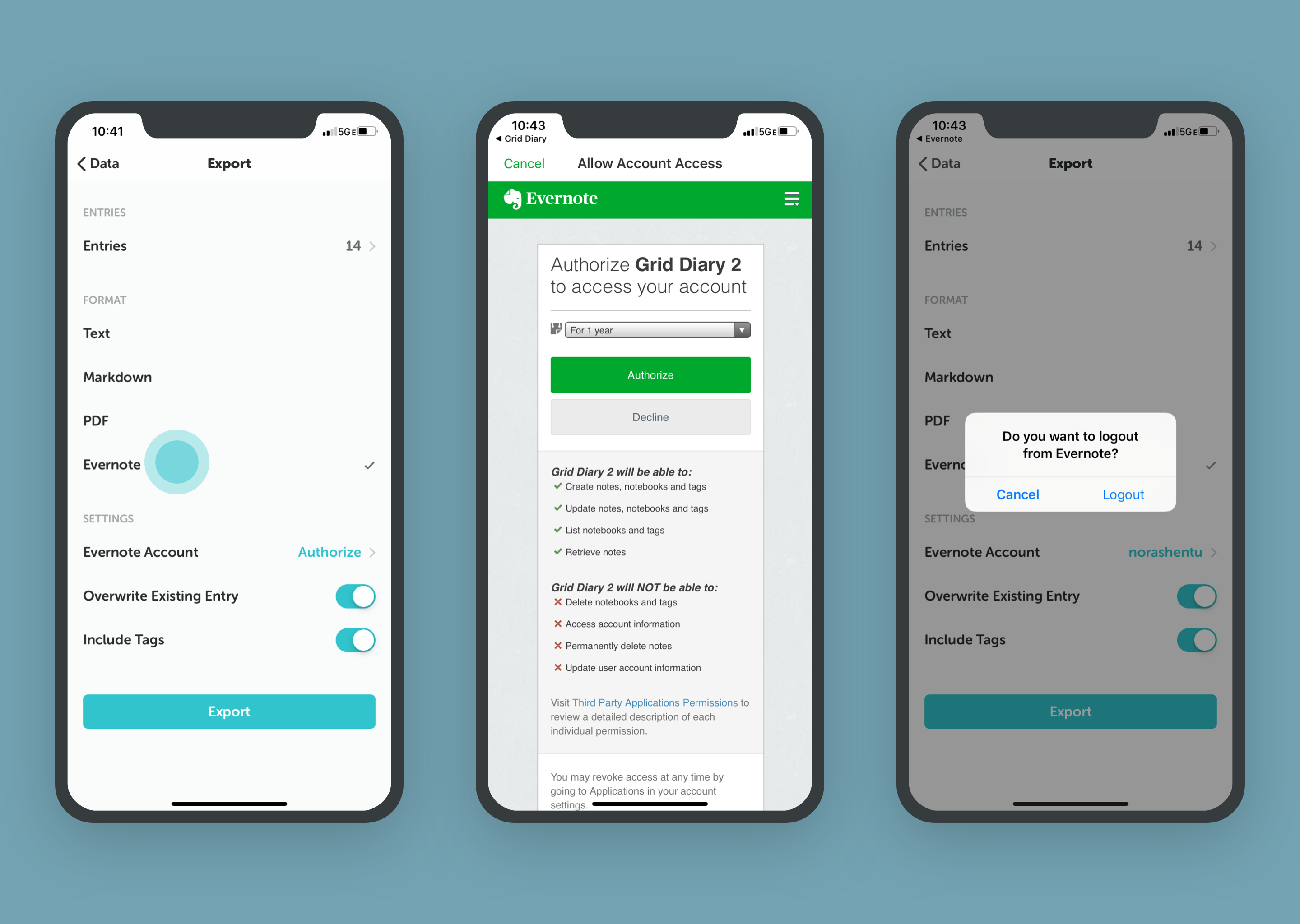
- Evernote: Exports your entry as an Evernote note.
Exporting to Evernote
Membership users can export their diaries to Evernote. If exporting to Evernote for the first time, you must authorize Grid Diary to access your Evernote account via the in-app popup or the official Evernote application. You can customize settings like Overwrite Existing Entry and Include Tags.
Importing Data
From JSON
If you have a Grid Diary Transfer File (.gdjson) saved on your device or in cloud storage, you can import it directly:
- Go to Settings (Me Tab) > Data.
- Tap Import JSON.
- Choose your
.gdjsonfile from the system file selector to import your diaries.
From Grid Diary Classic
- Go to Settings (Me Tab) > Data.
- Tap Migrate from Grid Diary Classic to import your diaries from the classic version.
If you are upgrading from the classic version, see our Migration Guide.
From Day One
If you are migrating from Day One, you can import your entries directly into Grid Diary.
Step 1: Export from Day One
- Open Day One, go to Settings, and tap Import/Export.
- Tap Export Day One JSON to export your entries as a zip file.
Step 2: Import into Grid Diary
You can import your Day One data using two different methods:
- Method 1: Copy to Grid Diary (Quick)
After tapping "Export Day One JSON", tap the generated
.zipfile in Day One and select Copy to Grid Diary. - Method 2: Save and Browse (Manual)
Save the exported
.zipfile to your iOS device Files app. Open Grid Diary, go to Me > Data > Backup > Import Day One, tap Browse File (.ZIP), and select the exported file.
Step 3: Customize Import Rules
Before importing, customize how your entries are mapped:
- Single Grid: Merge all same-day entries from Day One into a single grid (default prompt: "Day One").
- Multiple Grids: Assign each Day One entry into separate grids with timestamps as titles.
- Insert Timestamp / Import Tags: Toggle importing original tags and timestamps.
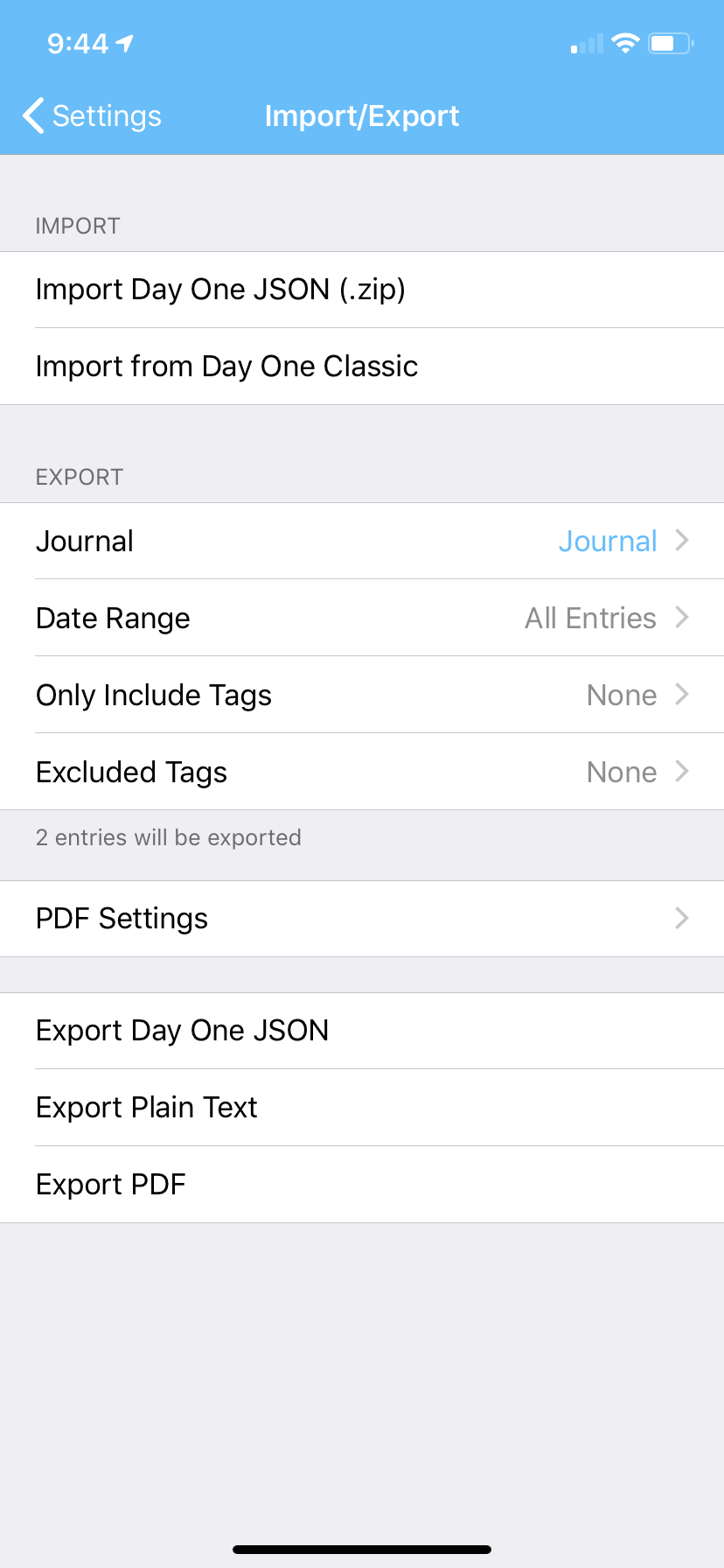 1. Export Day One JSON
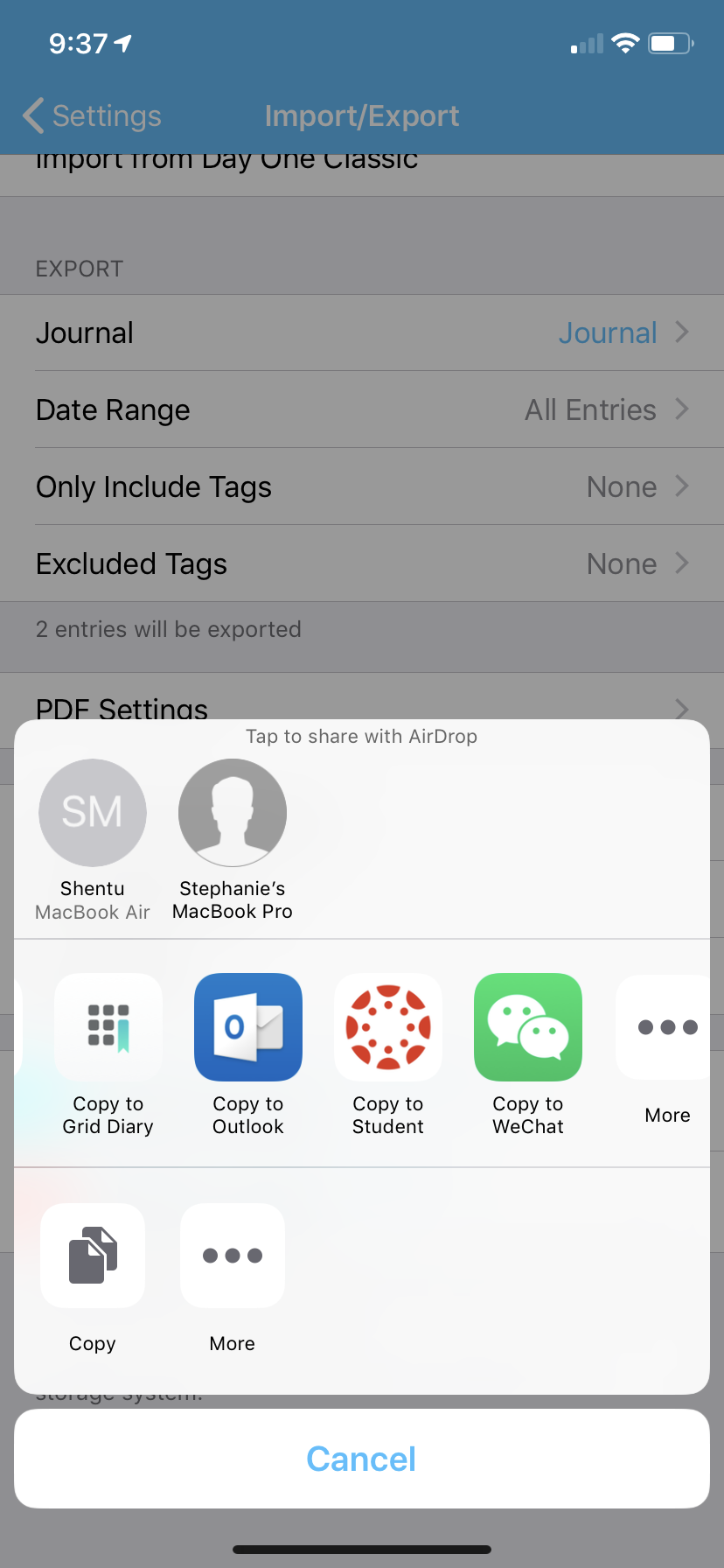 2. Copy to Grid Diary
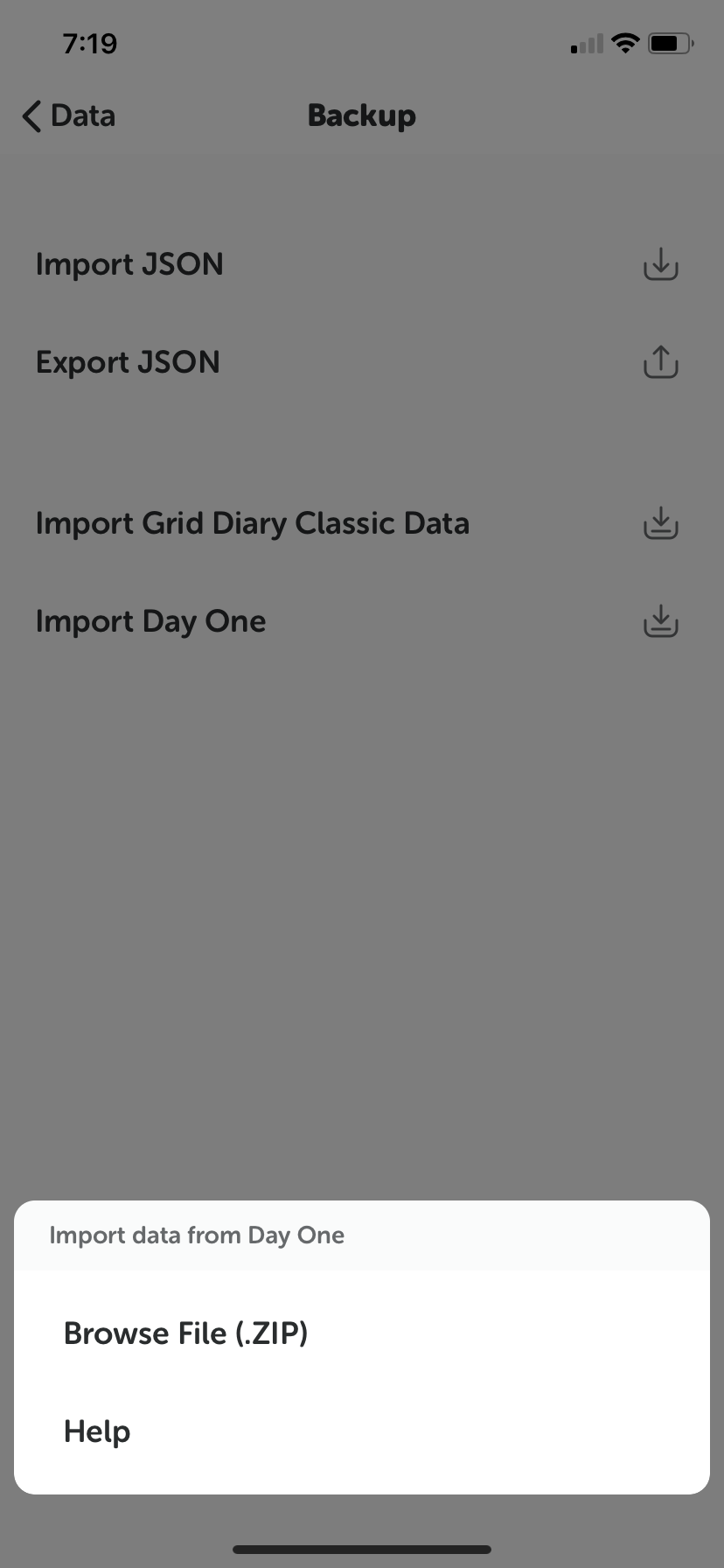 3. Or Save to Files
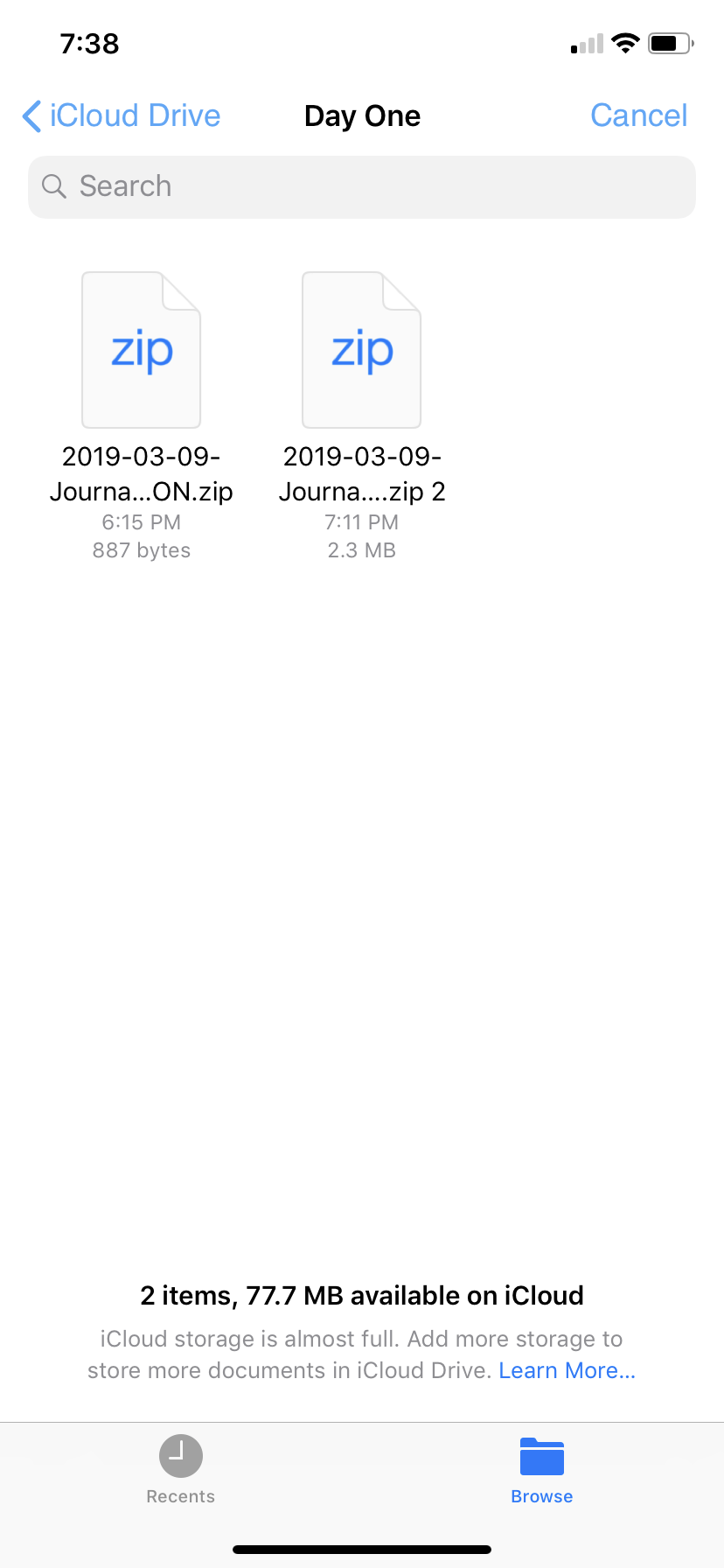 4. Browse File (.ZIP)
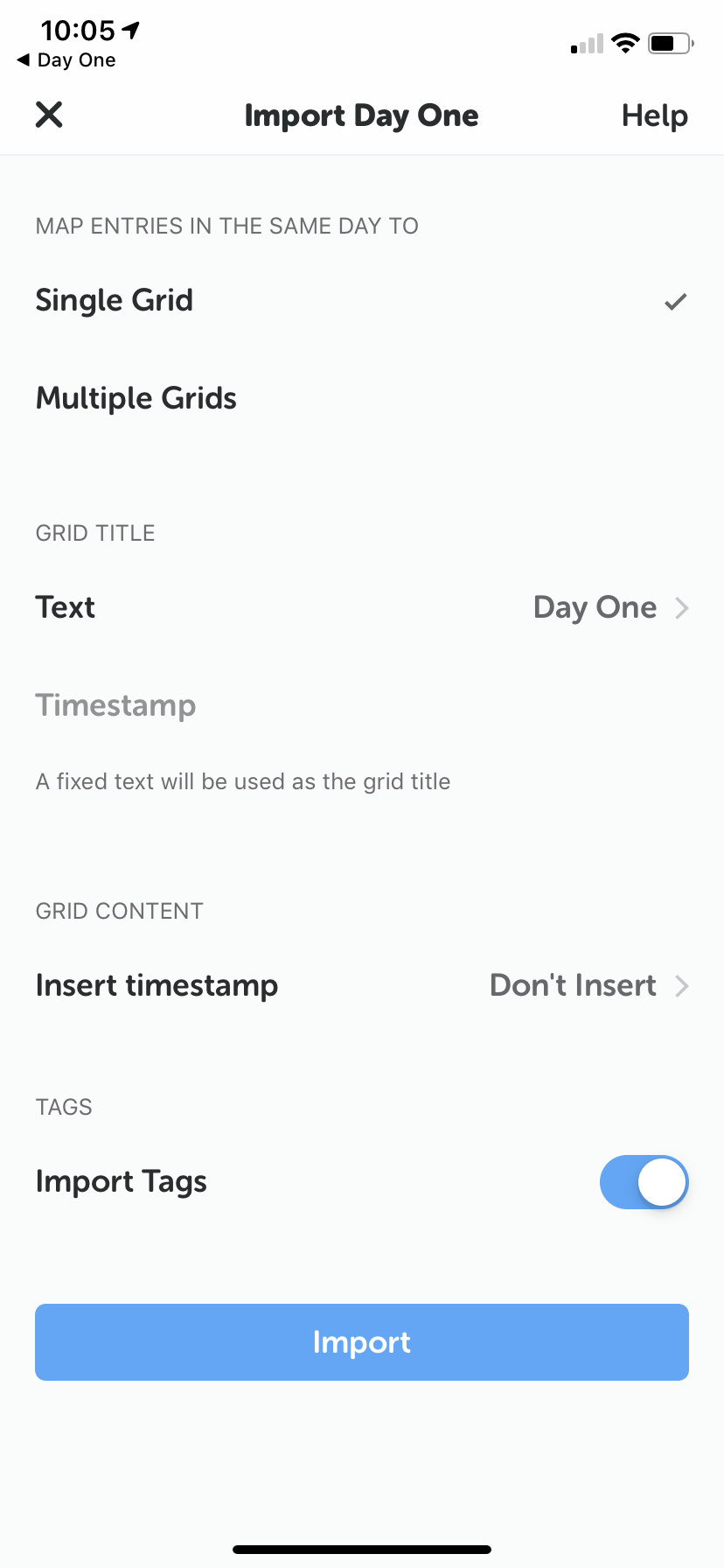 5. Customize Rules
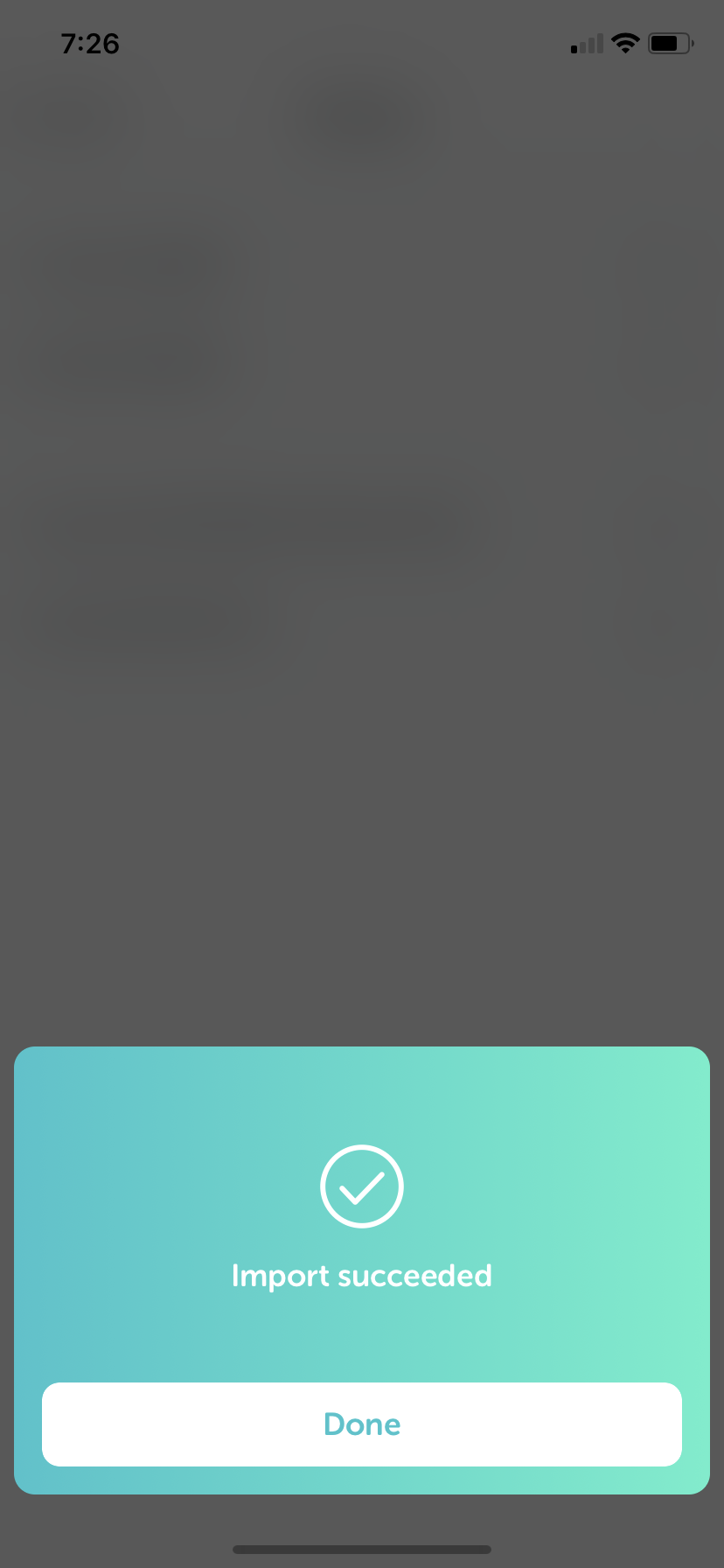 6. Finish Import