

Pro Tips
Discover advanced features, shortcuts, and clever tricks to get the most out of your Grid Diary writing experience.
Linking to Another Entry
You can cross-reference and link different diary entries together. This is perfect for connecting related days, referencing past events, or building a personal wiki of your reflections.
How to Copy and Paste a Markdown Link to an Entry:
- Go to Grid View: Navigate to the grid view of the diary entry you want to link to.
- Copy the Link: Tap the "···" (More) icon in the upper-right corner.
- Select Markdown Link: Select More > Copy As > Copy Markdown Link. The link is now copied to your clipboard.
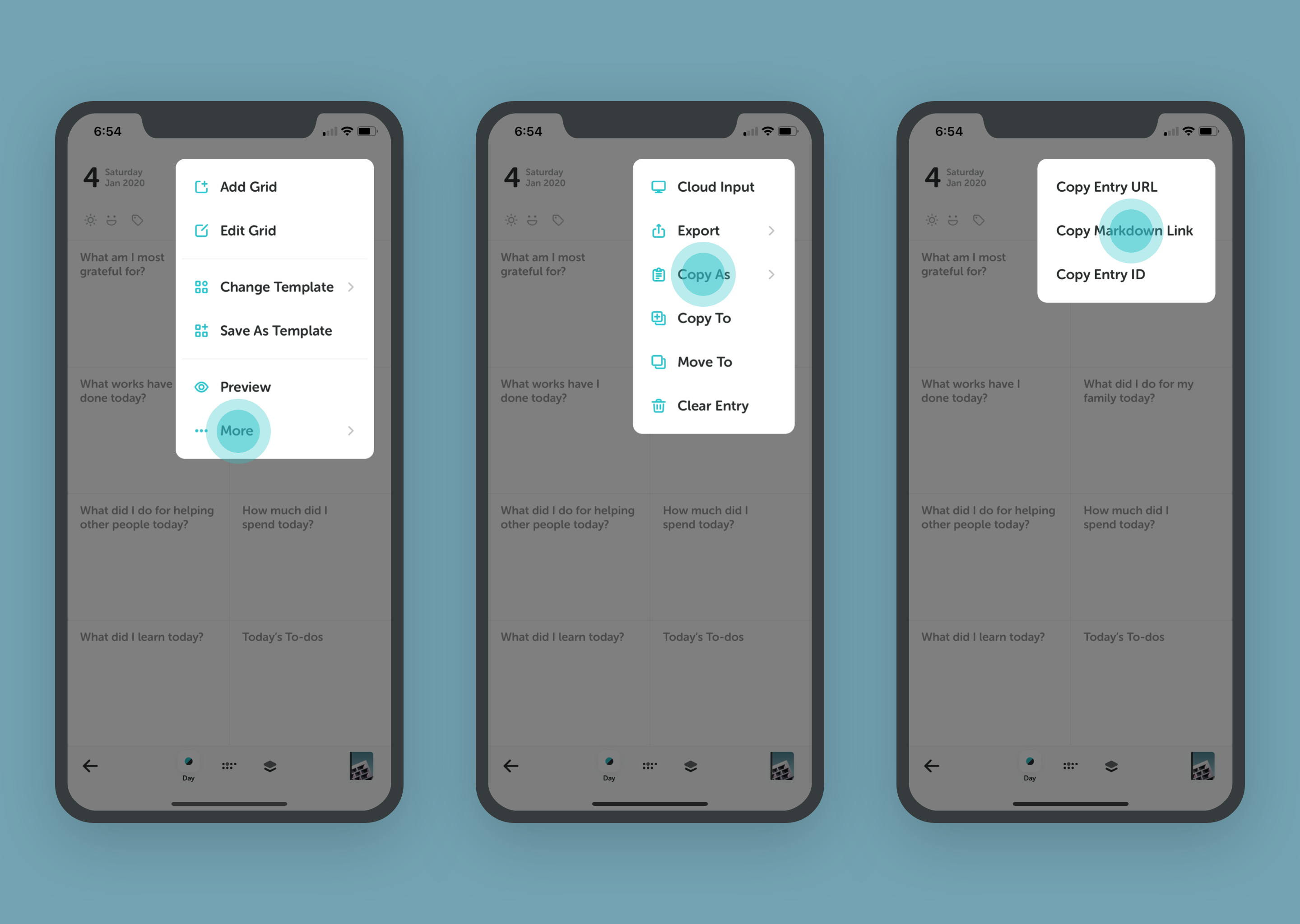
- Paste the Link: Open the grid entry where you want to insert this reference. Tap the blank writing space and select Paste to insert the copied link.
- Navigate: When you preview this entry, you can simply tap the link to instantly jump to the linked diary entry.
Inserting Timestamps
Timestamps are a great way to log exactly when a specific thought, event, or activity occurred within a single grid.
- Open the Tool Menu: Inside any active grid editor, tap the "⊕" (Plus) icon in the bottom menu.
- Insert Timestamp: Tap Insert Timestamp. You can choose from 3 different time formats to suit your style.
Inserting Grid History
Grid History allows you to quickly view and insert contents you wrote in the past for the exact same prompt (grid question). This is incredibly helpful for tracking progress, following up on tasks, or maintaining continuity in daily routines.
- Open the Tool Menu: Tap the "⊕" (Plus) icon in the bottom menu of your active grid editor.
- Access History: Tap Grid History to see a list of your previous entries for this prompt.
- Insert Content: Select any past entry from the list to instantly insert or append it to your current grid.
Example Scenario: If you are writing in your "Today's To-Dos" grid, tapping Grid History lets you select unfinished tasks from previous days and insert them directly into today's list without retyping.