
Settings & Customization
Manage your preferences, look and feel, and Apple Health integration
Access settings in Grid Diary by tapping your top-left Avatar to enter the Me tab, then tap Settings.
General Settings
You can customize core behavior directly from the Settings screen:
- Passcode: Secure your diary entries with a passcode lock, Face ID, or Touch ID.
- Reminders: Set up personalized daily notifications to build a consistent journal writing habit.
- Start of Week: Configure the calendar layout to start on either Sunday or Monday.
- Sound Effects: Toggle the satisfying typing sound effects on or off.
App Customization
Personalize the appearance and layout of your diary to match your personal style:
- Appearance: Toggle between Light Mode and Dark Mode, or choose from a collection of curated color themes (Membership feature).
- Typography: Adjust the font size, line spacing, and change the font face.
- App Icon: Choose from a wide selection of custom app icons to complement your device's home screen theme.
Apple Health & Activity Integration
For tracking physical wellness and importing metrics, Grid Diary integrates directly with Apple Health. You can pull your daily activity data (steps, active energy, walking distance) directly into any entry grid prompt.
How to Insert Activity Data
- Open the journal entry, and tap the grid prompt where you want to insert activity data.
- Tap the "+" sign in the bottom left of the keyboard editor toolbar.
- Select Insert Activity Data.
- Grant Health app access permission when prompted.
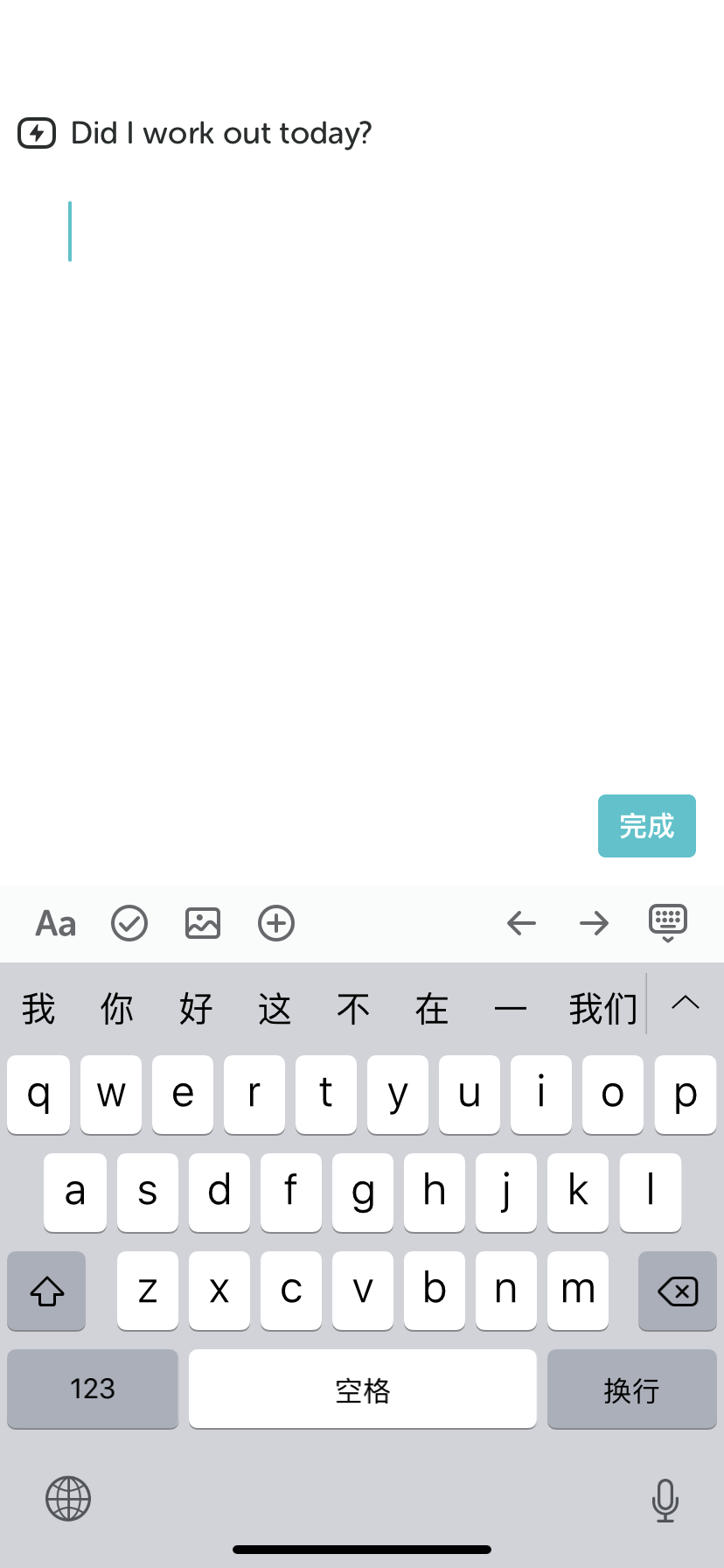 1. Tap "+" in Editor
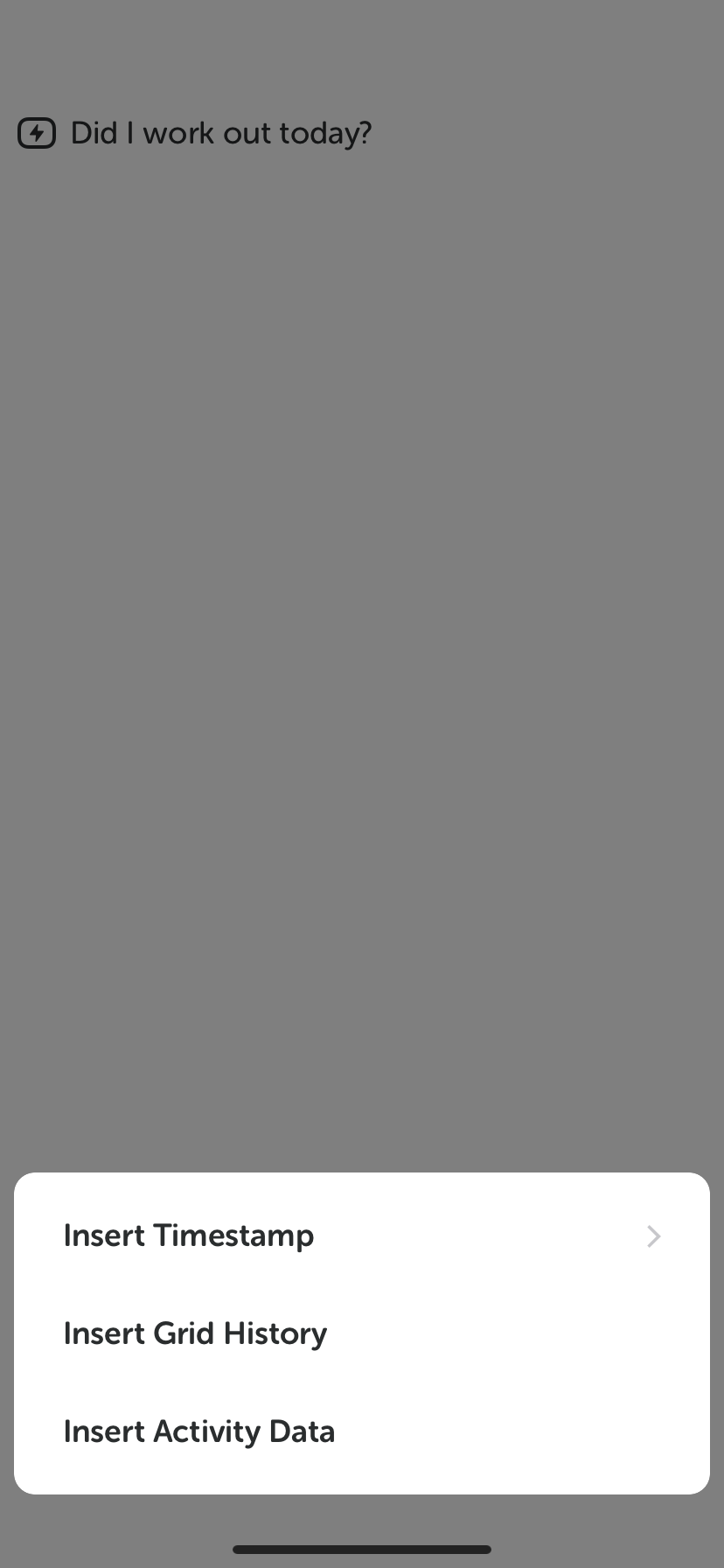 2. Select Activity Data
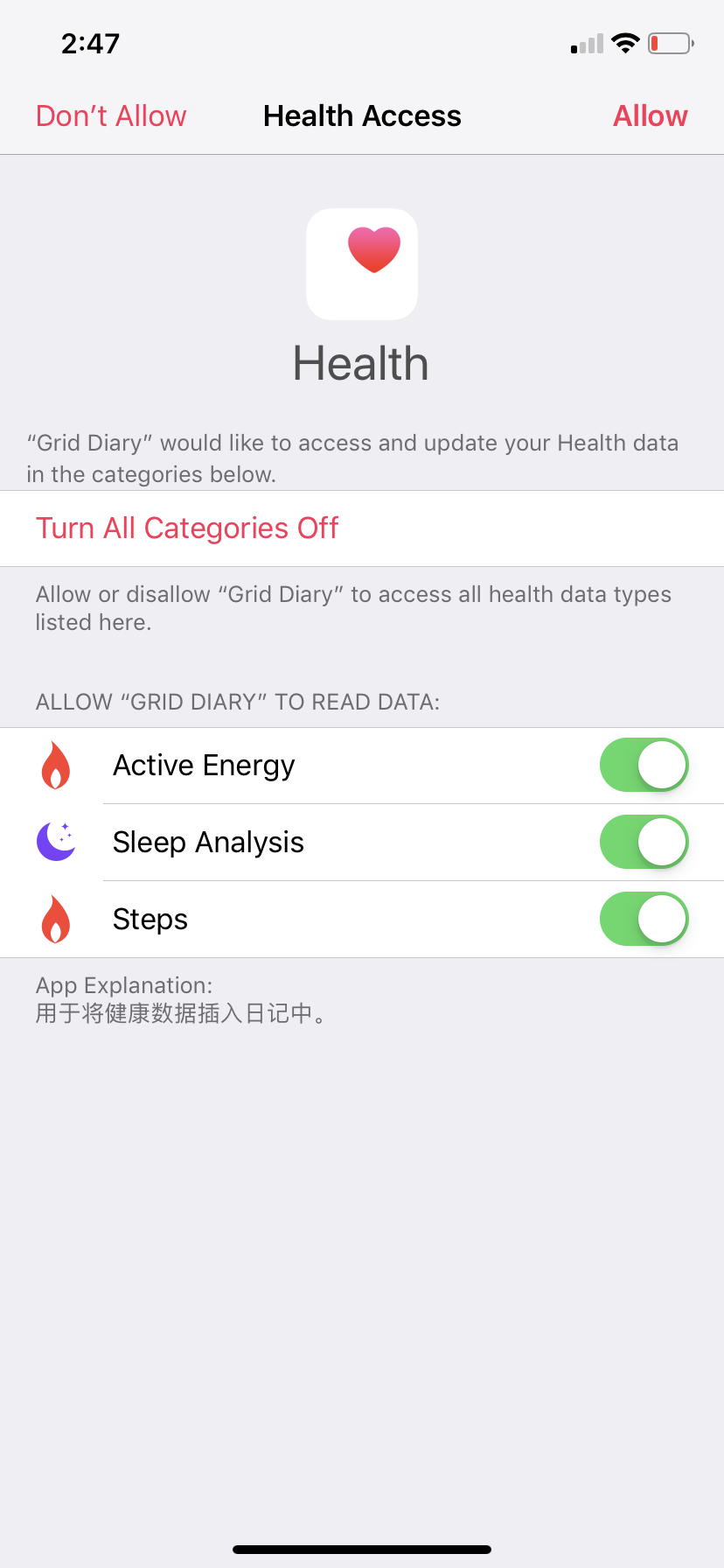 3. Grant Permissions
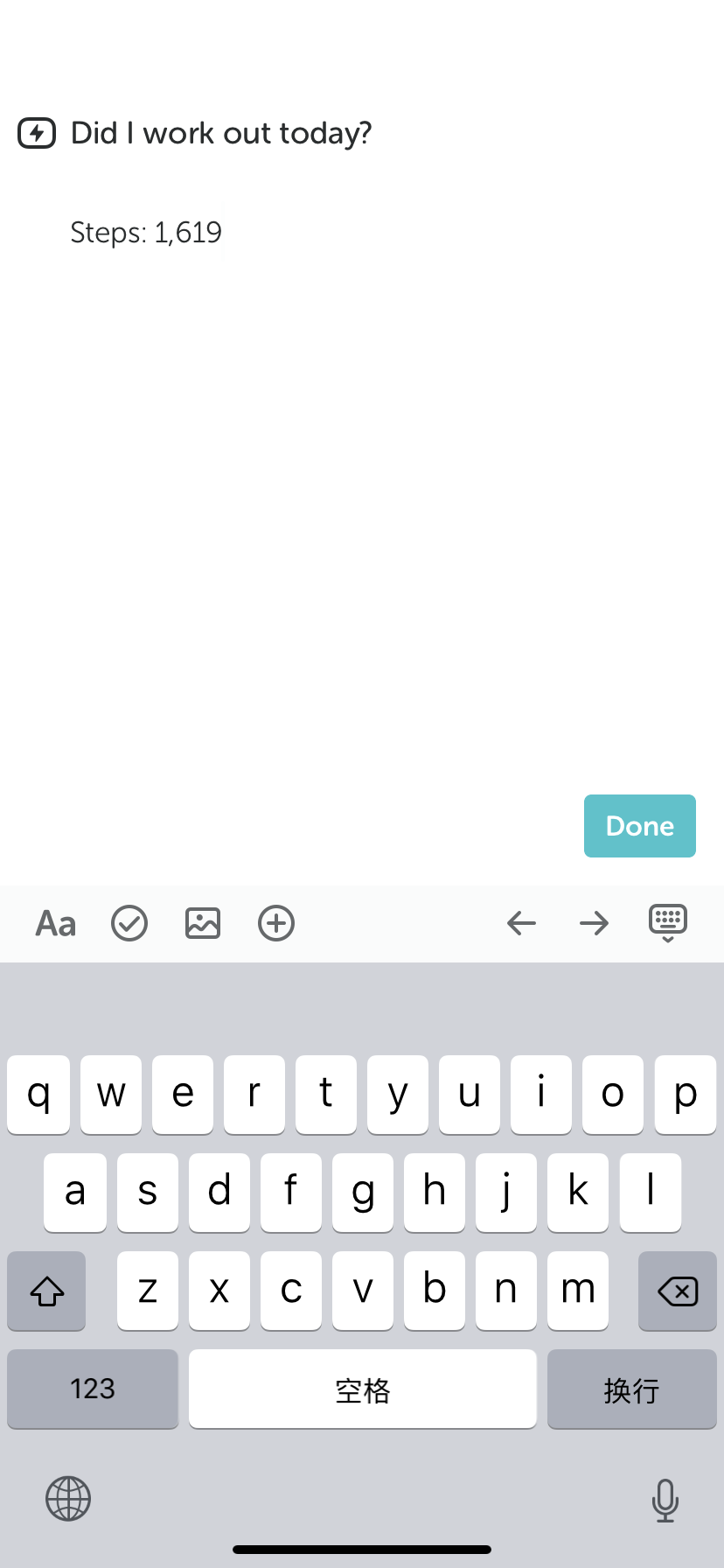 4. Data Inserted Successfully